
Upgrading your home with smart technology provides a level of convenience and security that was unimaginable just a few decades ago. One of the most practical upgrades you can make is linking your garage entry to your home network. Learning how to connect garage door opener to wifi allows you to monitor, open, and close your garage door from anywhere in the world using your smartphone.
Whether you have just installed a brand-new LiftMaster system or you are looking to retrofit an existing opener, this process transforms your smartphone into a universal remote. No more turning the car around because you forgot to close the door; with a quick glance at your screen, you can ensure your home is secure. This guide will walk you through the preparation, connection, and troubleshooting steps to get your system online.
Benefits of Adding Wi-Fi to Your Garage Door Opener
Before diving into the technical setup, it is worth understanding the value this feature brings to your daily life. A Wi-Fi-enabled garage door is more than just a cool gadget; it is a security tool.
Remote Monitoring and Control
The primary benefit is peace of mind. You can check the status of your door at any time. If you have guests arriving before you get home, or if a delivery driver needs to drop off a package, you can open the door remotely and close it immediately after they leave.
Real-Time Alerts
Security is about awareness. Smart garage apps allow you to set up custom notifications. You can receive an alert on your phone every time the door is opened or closed. Furthermore, you can set alerts to notify you if the door has been left open for a specific period, preventing you from accidentally leaving your home exposed overnight.
Scheduled Operations
Many systems allow you to set schedules. For example, you can program the app to ensure the door closes automatically at 10:00 PM every night, adding an extra layer of security for forgetful homeowners.

Before You Begin: Checking Opener Compatibility
Not every garage door opener is ready to connect out of the box. You need to verify what equipment you have.
Built-In Wi-Fi
Look at the motor unit on your garage ceiling. If you see a “Wi-Fi” logo or a “Powered by myQ” logo, your unit likely has the technology built-in. These units are ready to connect immediately via your smartphone.
MyQ Enabled (No Wi-Fi)
If you see a “myQ” logo but no Wi-Fi logo, your opener is smart-capable but requires an internet gateway to bridge the connection to your router.
Older Models
If your opener was manufactured after 1993 (and has safety sensors) but lacks smart branding, you can still connect it. You will simply need to purchase a Smart Garage Hub or a retrofit kit.
How to Test Your Wi-Fi Signal Strength
A strong internet connection is vital for the reliable operation of your smart opener. Because garages are often far from the main router and surrounded by concrete or metal, Wi-Fi dead zones are common.
To test your signal, take your smartphone into the garage. Stand directly underneath the garage door opener motor. Ensure your phone is connected to your home Wi-Fi network (not cellular data). Try to stream a video or load a graphics-heavy website. If the content loads quickly without buffering, your signal is likely sufficient.
How to Improve Your Wi-Fi Signal Strength
If you find that the signal in your garage is weak or drops frequently, the smart features will not work reliably. You may experience delays in opening the door or “offline” errors in the app.
Install a Wi-Fi Extender
The simplest solution is to buy a Wi-Fi range extender. Plug this device into an outlet halfway between your router and the garage. It will boost the signal into the garage.
Upgrade to a Mesh System
For a more robust solution, consider a mesh Wi-Fi system. Placing a satellite node in or near the garage ensures a strong, seamless connection for your opener and any other devices you use in that space.

How to Connect Your LiftMaster Garage Door Opener to Wi-Fi With the myQ App
For most modern LiftMaster and Chamberlain openers, the connection process is handled through the myQ app. Ensure you have the password for your home Wi-Fi network handy. Note: Most garage door openers only connect to 2.4GHz networks, so ensure you are not trying to force a connection to a 5GHz band.
Connect With an Apple iOS Device
-
Download and Create Account: Download the myQ app from the App Store and create your account.
-
Add Device: Tap the “+” icon to add a new device. Select “Garage Door Opener” and locate the specific model you have (Smart Opener vs. Hub).
-
Smart Control Panel Method: If you have a wall-mounted LCD control panel, press “Menu,” scroll to “Program,” and select “Wi-Fi Setup.”
-
Learn Button Method: If you do not have an LCD panel, press and release the yellow “Learn” button on the motor unit three times. The opener will beep, indicating it is in Wi-Fi setup mode.
-
Accessory Setup: Go to your iPhone settings and select “Wi-Fi.” You should see your garage door opener listed under “Set Up New Device.” Tap it, and your phone will share your home Wi-Fi credentials with the opener automatically.
-
Finalize: Return to the myQ app to name your door and complete the setup.
Connect With an Android Device
-
Initiate Setup: Download the myQ app and log in. Tap the “+” icon to add your device.
-
Activate Opener: Put your opener into Wi-Fi setup mode by pressing the “Learn” button on the motor unit three times (or using the wall control menu). The opener will beep.
-
Connect to Opener Network: Open your Android Wi-Fi settings. You will see a temporary network broadcasting from the opener, usually named “myQ-XXX.” Connect to this network.
-
Browser Setup: Once connected to the opener’s network, open your mobile browser and type in
setup.myqdevice.com. -
Link to Home Wi-Fi: Follow the on-screen prompts in the browser to select your home Wi-Fi network and enter your password.
-
Complete: Once the LED light on the opener turns solid green, return to the app to finish the registration.
How to Add Wi-Fi to Your Existing Garage Door Opener
If your garage door opener is older and does not have built-in Wi-Fi, you can bridge the gap using a Smart Garage Hub (retrofit kit). This usually consists of a Wi-Fi hub that mounts to the ceiling and a door sensor.
-
Mount the Sensor: Attach the battery-powered door sensor to the top panel of your garage door using the included adhesive strips or screws.
-
Install the Hub: Plug the Wi-Fi hub into an outlet on the garage ceiling, near the motor.
-
Sync the Hub: Use the app to connect the hub to your home Wi-Fi.
-
Pair with Motor: Follow the app instructions to pair the hub with your specific brand of garage door opener. This usually involves pressing the “Learn” button on your old motor so the hub can learn the frequency.
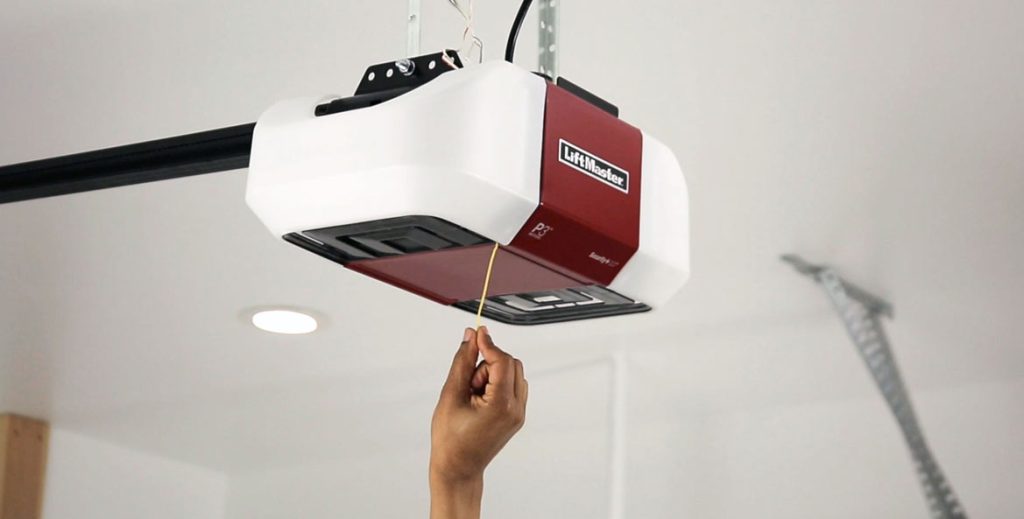
Troubleshooting Guide for Connecting a myQ Smart Garage Door Opener to the Internet
If the connection fails, do not panic. Here are the most common solutions.
Opener Beeps But Won’t Connect
This often means the password entered for your home Wi-Fi was incorrect, or the signal strength is too weak. Double-check your password and try moving the router closer temporarily to rule out signal issues.
Blue or Green Flashing Lights
-
Blue Flashing: The opener is ready to be set up.
-
Green Flashing: The opener is trying to connect to the router.
-
Solid Green: The opener is connected to Wi-Fi.
-
Blue/Green Alternating: The device is in “hotspot” mode for setup.
Resetting the Wi-Fi
If you change your home internet provider or router, you need to clear the old settings from the opener. Press and hold the black adjustment button (between the arrows) on the motor unit for 6 seconds until the LED turns off. Then, restart the setup process.
Firewall Issues
In rare cases, your router’s firewall may be blocking the device. Ensure ports 8883 and 53 are open for the device to communicate with the server.
If you are struggling with the technology or simply prefer a professional installation, Garage Door On is here to help. Our technicians can assess your signal, install the necessary smart hubs, and ensure your system is secure and fully functional. Contact us today to bring your garage into the modern age.